What Is an A5 Trifold Mockup V4—and Why It Matters for Designers, Marketers, and Small Businesses
Whether you're designing a brochure for a local café, pitching a new service to clients, or preparing marketing collateral for a university event, visual clarity and professional presentation matter. That’s where tools like the A5 Trifold Mockup V4 come in—not as a design itself, but as a powerful presentation layer that brings flat artwork to life. In this article, we’ll break down exactly what an A5 trifold mockup is, why version 4 stands out, and how it supports real-world creative and business goals—without requiring advanced technical skills.
Understanding the Basics: What Is an A5 Trifold?
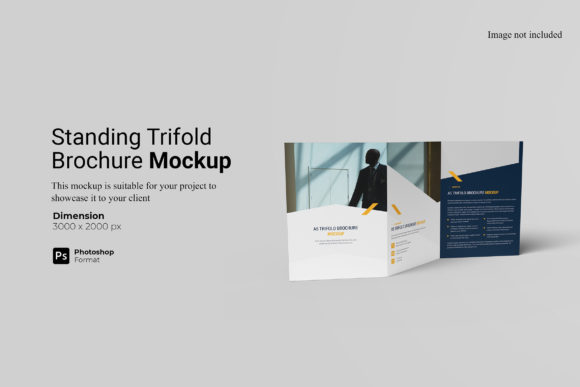
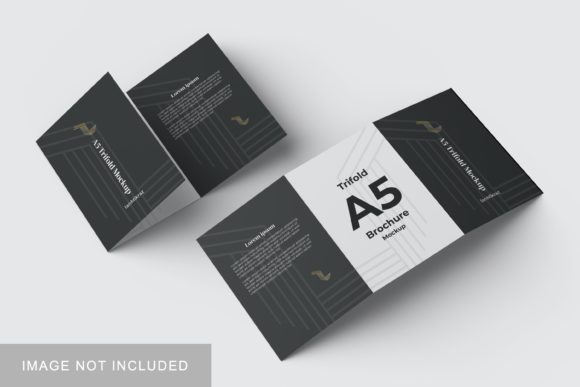
Let’s start with fundamentals. An A5 refers to a standard paper size in the ISO 216 system—measuring 148 mm × 210 mm (or roughly 5.8 × 8.3 inches). When folded into three equal panels—two outer flaps folding inward over a central panel—it becomes a trifold. This layout is widely used for brochures, event programs, product summaries, and informational handouts because it’s compact, portable, and intuitive to navigate.
Unlike digital-only graphics, a trifold brochure is tactile and spatial: readers unfold it step-by-step, revealing content in a deliberate sequence. That physical rhythm matters—it guides attention, builds anticipation, and reinforces messaging through structure.
What Exactly Is a Mockup—and Why “V4”?
A mockup is a realistic, high-fidelity visual representation of how your design will appear in the real world—on paper, on screen, or in context. Think of it as a “digital dress rehearsal”: you place your logo, text, and images into a pre-built 3D scene showing lighting, shadows, texture, and subtle imperfections (like paper grain or gentle creases) to simulate authenticity.
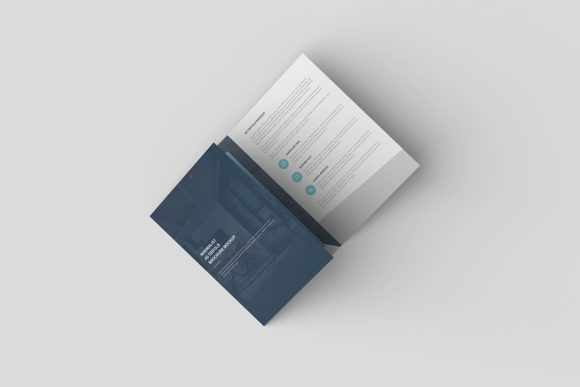
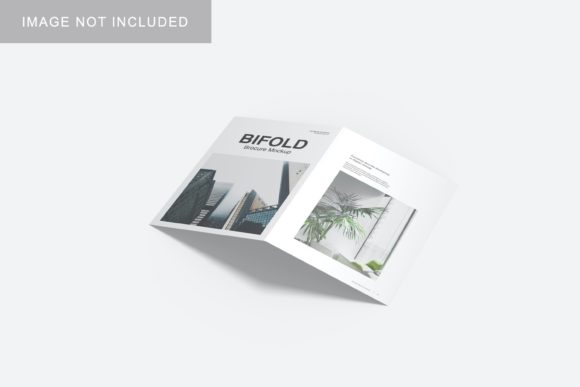
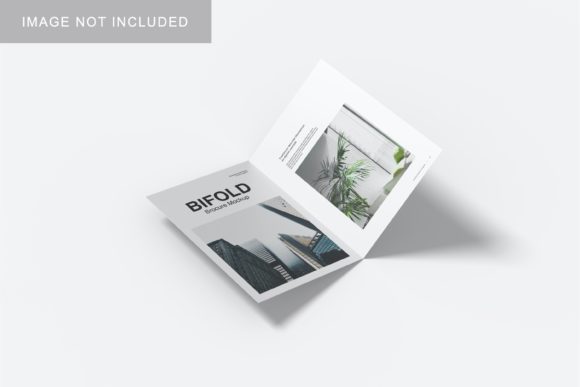
The A5 Trifold Mockup V4 is not just another template—it’s an evolution. Earlier versions offered basic front-and-back views. Version 4 introduces:
- Multiple realistic angles—including top-down, angled desk view, and handheld perspective;
- Smart layer organization in Photoshop (PSD) files, with clearly labeled, non-destructive smart objects;
- Customizable lighting and background options, so you can match brand photography or presentation themes;
- Print-ready bleed and fold guide overlays, helping designers avoid costly layout errors before sending to press.
This isn’t about making things “look pretty.” It’s about building trust—whether you’re showing a client how their nonprofit’s annual report will feel in hand, or helping a student visualize a class project for a design critique.
Why Use a Mockup Instead of Just Showing Flat Artwork?
Here’s a common misconception: “If my design looks good on screen, isn’t that enough?” Not quite. Flat files lack context—and context shapes perception.
Consider these real-world examples:
- A freelance graphic designer sends a client two files: one is a PNG of the trifold layout; the other is the same design placed into the A5 Trifold Mockup V4, shown resting on a light wooden table beside a coffee cup and notebook. The second image instantly communicates professionalism, intentionality, and real-world usability—leading to faster approval and fewer revision rounds.
- An education nonprofit uses the mockup to preview printed materials for a community health workshop. Seeing the brochure in context helps volunteers understand how to hold and distribute it—and even spot readability issues (e.g., small body text near a fold line) before printing hundreds of copies.
- A tech startup includes a mockup in its investor pitch deck. Rather than describing “a sleek, tri-panel handout,” they show the exact look and feel—reinforcing brand cohesion across touchpoints and signaling attention to detail.
In short: mockups bridge the gap between concept and experience. They turn abstract design decisions into tangible outcomes.
Who Benefits Most from the A5 Trifold Mockup V4?
While often associated with graphic designers, this tool serves a surprisingly wide audience:
Small Business Owners
You don’t need a design degree to use it. With drag-and-drop compatibility in tools like Adobe Photoshop or free alternatives supporting PSD layers (e.g., Photopea), you can insert your Canva-exported artwork in minutes. No retouching, no guesswork—just instant realism.
Educators and Students
Design classes, marketing courses, and communications programs increasingly emphasize portfolio-ready deliverables. Using V4 helps students demonstrate applied thinking—not just “what they made,” but “how it lives in the world.”
Marketing & Communications Teams
When launching a new campaign, internal stakeholders often respond better to visuals than specs. A well-placed mockup in a slide deck or email speeds alignment, reduces miscommunication, and strengthens cross-departmental buy-in.
Clarifying Common Confusions
Before moving on, let’s clear up a few frequent assumptions:
- It’s not a design template. The A5 Trifold Mockup V4 doesn’t include fonts, color palettes, or layout grids—it’s a container for your work. You bring the content; it provides the context.
- It’s not only for print. While built around physical dimensions, many teams use it for digital presentations, social media previews, or website hero sections—especially when promoting printed collateral.
- V4 isn’t “better” just because it’s newer. Its value lies in workflow enhancements: better file structure, more natural lighting, and thoughtful fold-line visibility—features that save time and reduce errors.
How to Use It Effectively (Even If You’re Not a Designer)
You don’t need to master Photoshop to benefit. Here’s a simple, beginner-friendly workflow:
- Export your final trifold design as a high-resolution PNG or JPG (300 DPI recommended for print contexts).
- Open the A5 Trifold Mockup V4 PSD file in Photoshop or a compatible editor.
- Double-click the designated smart object layer (usually labeled “Your Design Here”)—this opens a new window where you paste your artwork.
- Save and close that window—the mockup automatically updates with your design, complete with realistic folds and lighting.
- Export as PNG or JPEG, then share confidently.
Pro tip: Try exporting the same design in two different mockup angles—one for client emails, another for your website gallery. Visual variety adds polish without extra effort.
Looking Ahead: Mockups in the Age of AI and Remote Work
As remote collaboration grows and AI tools accelerate early-stage design, mockups like the A5 Trifold V4 are becoming even more essential—not as “final polish,” but as shared reality anchors. When team members are scattered across time zones, a realistic mockup offers a common reference point that transcends language, discipline, or experience level.
Moreover, while generative AI excels at ideation and iteration, it still struggles with precise physical simulation—like how light catches the edge of a folded corner or how paper texture affects color perception. That’s where curated, expert-built mockups retain irreplaceable value.
Final Thoughts: More Than a Visual Shortcut
The A5 Trifold Mockup V4 is more than a time-saving asset—it reflects a deeper shift in how we communicate ideas. In a world saturated with digital noise, tangible, thoughtfully presented information stands out. Whether you’re explaining climate science to middle schoolers, launching a boutique skincare line, or documenting a research initiative, how your message appears matters as much as what it says.
By choosing tools grounded in real-world behavior—like accurate fold lines, natural lighting, and contextual backgrounds—you signal respect for your audience’s time, attention, and intelligence. And that, ultimately, is the hallmark of truly helpful, human-centered communication.
If you're exploring mockups for the first time, start simple: download a trusted A5 Trifold Mockup V4 file, test it with your next project, and notice how feedback changes—not just in tone, but in depth. You might be surprised how much clarity a single, well-chosen visual can bring.