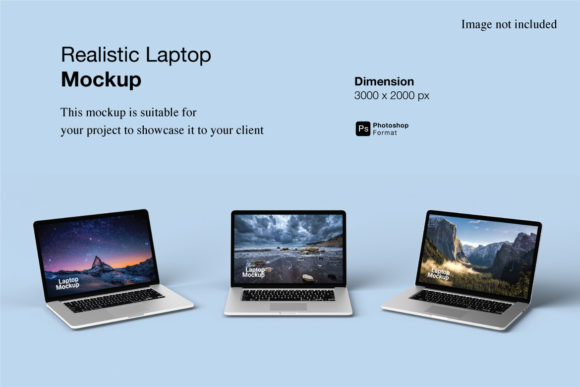
Realistic Laptop Mockup
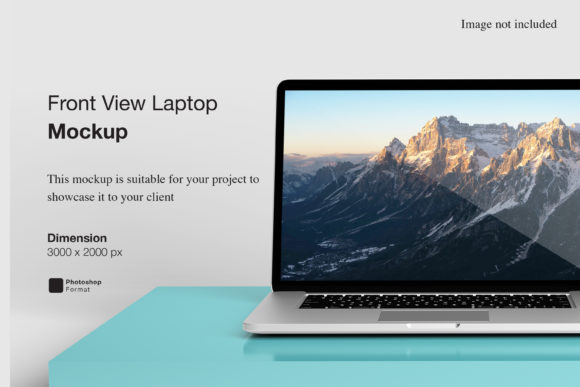
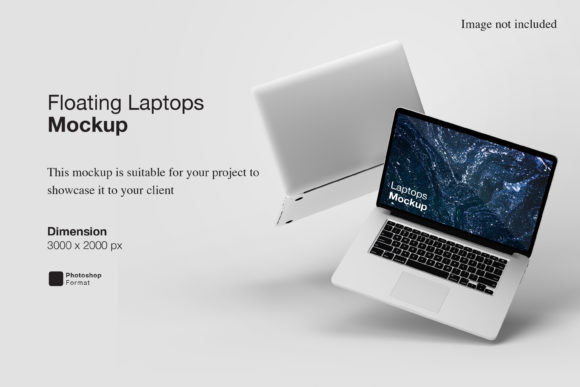
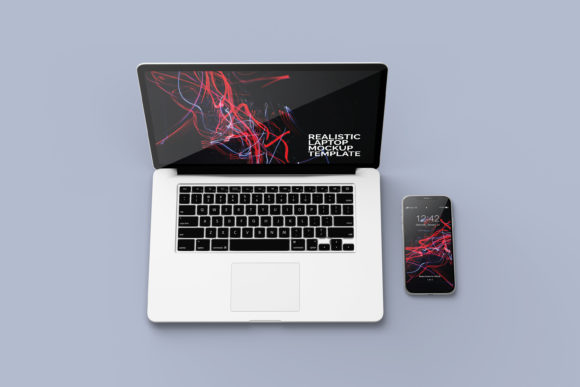
A Realistic Laptop Mockup is a high-fidelity digital template that lets you showcase designs—like websites, apps, branding, or presentations—as if they’re running on an actual laptop screen. Unlike basic wireframe placeholders or flat device silhouettes, realistic laptop mockups include accurate lighting, subtle shadows, realistic screen glare, depth cues (like curved bezels or keyboard texture), and perspective that mimics how a real laptop sits on a desk or in a hand. People use them for client pitches, portfolio displays, social media previews, product landing pages, and educational demos—anywhere visual credibility matters.
Assuming “Realistic” Means “Ready to Use Out of the Box”
Many assume a mockup labeled “realistic” will work instantly with their design tool—and that’s where things often go sideways. A realistic laptop mockup may require layered PSD or Figma files with smart objects, proper layer naming, or specific export dimensions. If you drop your logo into the wrong layer—or forget to double-click the smart object to update the screen content—you’ll get a blurry, misaligned, or distorted preview. That undermines trust before your design even speaks for itself.
For example, one freelance designer sent a client a mockup where the website screenshot was stretched across the entire screen layer instead of embedded in the designated screen area. The result looked like a warped reflection—not a polished interface. The fix? Always open the mockup file first, locate the labeled “Screen Content” layer or smart object placeholder, and follow the included instructions—even if it’s just two lines in a README.txt.
Overlooking Context and Intended Use
Not all realistic laptop mockups serve the same purpose. A studio-quality mockup with studio lighting and marble background might look stunning on a Behance portfolio—but feel out of place on a Shopify product page where clean, consistent white-background thumbnails are expected. Similarly, a mockup showing a laptop at a 45-degree angle works well for hero banners, but fails when you need a straight-on top-down view for a comparison grid.
Before downloading or buying, ask: Where will this live? Is it for print? Web? Social feed? Email newsletter? Check the file format (PSD, Figma, Sketch, PNG), resolution (300 DPI for print vs. 72 DPI for web), and background options (transparent, white, or lifestyle). Some mockups include multiple angles or editable backgrounds—others don’t. Don’t assume flexibility; verify it.
Ignoring Device-Specific Details
“Laptop” isn’t a single shape. A MacBook Air has a thin aluminum chassis and near-bezelless display. A gaming laptop might have RGB keys, thick vents, and aggressive angular lines. Using a generic “laptop” mockup for a brand that exclusively targets creative professionals on MacBooks can unintentionally dilute authenticity. Your audience notices these cues—even subconsciously.
Better approach: Match the mockup to your audience’s real-world hardware. If your SaaS dashboard is optimized for macOS, choose a MacBook Pro mockup—not a Windows laptop with a Start button visible in the taskbar. If you’re showcasing a responsive web app, consider pairing a laptop mockup with matching tablet and mobile versions to reinforce cross-device consistency.
Skipping Licensing and Usage Rights
Free mockups often come with clear usage terms—but not always. Some restrict commercial use, prohibit redistribution, or ban use in templates you sell. Others require attribution in fine print. Assuming “free = fully usable” can lead to takedowns, legal friction, or last-minute redesigns when a client asks for full rights and you realize the mockup license doesn’t allow it.
Always check the license before finalizing a project. Reputable sources like Freepik (with proper subscription), Mockup World, or Envato Elements list permissions upfront. When in doubt, opt for mockups with commercial-use, royalty-free, no-attribution-required licenses—even if they cost a few dollars. It’s cheaper than reworking a campaign post-launch.
Underestimating Lighting and Color Accuracy
Realistic laptop mockups rely heavily on lighting to sell the illusion—and lighting affects how your design appears. A mockup with warm ambient light may mute cool blues in your UI. One with strong directional light could cast harsh shadows over text, making body copy hard to read in the preview. You might love your design in Figma, but hate how it looks inside the mockup—not because the design is flawed, but because the mockup’s lighting clashes with your palette.
Solution: Test your design in the mockup *before* presenting. Adjust brightness or contrast subtly in your screen layer if needed—or choose a mockup with neutral, diffused lighting (often labeled “studio” or “product photography” style). Bonus tip: For accessibility checks, temporarily flatten the mockup layers and run your screen content through a color contrast checker. The mockup shouldn’t obscure legibility.
Forgetting the Human Element
A truly realistic laptop mockup doesn’t just show hardware—it suggests context. Is the laptop on a sunlit desk with coffee steam rising? On a lap during a remote meeting? In a co-working space with blurred background activity? These details signal tone, audience, and use case. A sterile, floating laptop against black feels technical but cold. A lived-in scene with natural textures adds warmth and relatability—especially for educators, coaches, or small business owners trying to connect emotionally.
Look for mockups that offer optional lifestyle elements: removable hands, changeable surfaces (wood, concrete, fabric), or layered background blur. Even small tweaks—like adding a notebook beside the laptop or adjusting the screen’s brightness level to match time of day—can elevate perceived professionalism without extra design work.
Final Checks Before You Commit
Before downloading, purchasing, or inserting a Realistic Laptop Mockup into your workflow, scan for these practical signals:
- File structure clarity: Are layers named logically (e.g., “Screen Content,” “Keyboard,” “Shadow”) and grouped intuitively?
- Smart object support: Does it use editable smart objects (in PSD) or auto-resizing frames (in Figma) so updates scale cleanly?
- Resolution & scalability: Is the base canvas 3000+ pixels wide for crisp zoom-ins or print use?
- Background flexibility: Can you easily toggle or delete the background, or is it baked into the main layer?
- Real-world fidelity: Zoom in—do screen reflections look natural? Do keyboard keys have subtle texture or gloss variation?
Choosing the right Realistic Laptop Mockup isn’t about finding the flashiest option—it’s about selecting the most honest, adaptable, and respectful representation of your work. When your mockup feels grounded in reality, your message lands with more clarity, confidence, and quiet authority.